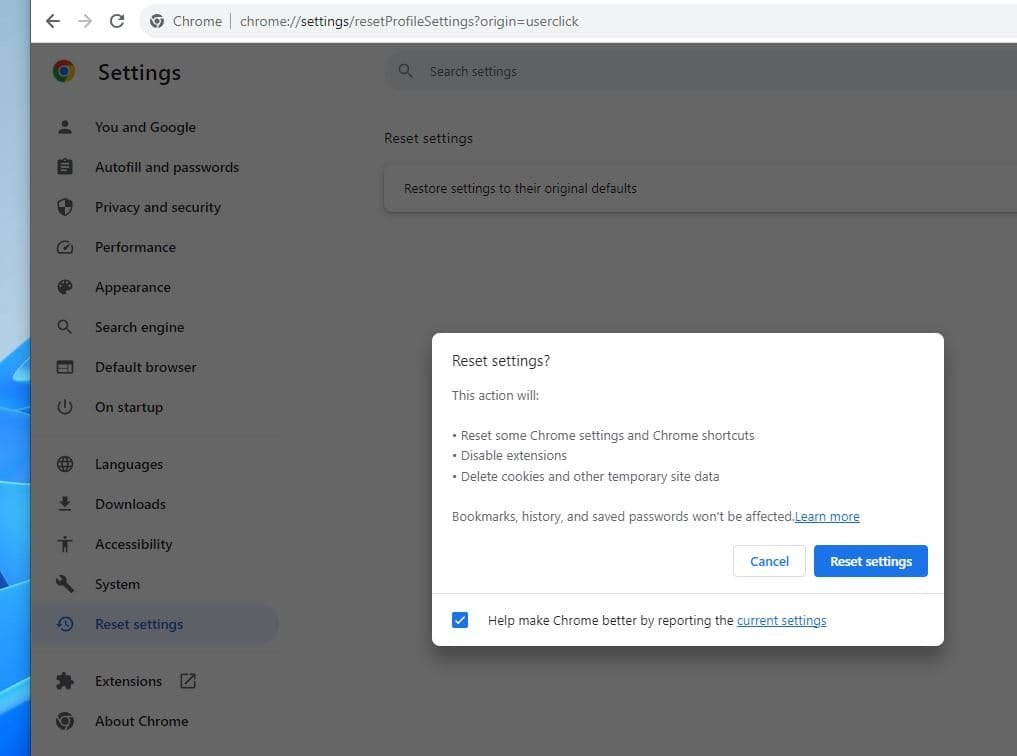
When your Chromebook starts acting less like a trusty sidekick and more like a temperamental teenager—freezing, crashing, or refusing to boot with the dreaded "Chrome OS is missing or damaged" message—it's time for some serious intervention. While a simple restart often does the trick, sometimes you need to pull out the bigger guns. This guide dives deep into Advanced Chrome OS Recovery & Reset Options, equipping you with the knowledge to perform full system reinstalls, factory resets, and even hard resets to bring your device back from the brink.
Whether you're troubleshooting persistent errors, preparing your device for a new owner, or simply want a fresh start, understanding these powerful tools is key to maintaining your Chromebook's health and performance.
At a Glance: Essential Takeaways Before You Begin
- Backup, Backup, Backup: Any significant reset or recovery process will wipe all local data. Synchronize your Google account, and back up important files to Google Drive or an external drive.
- USB Recovery: Reinstalls the entire operating system, crucial for corruption or boot issues. Requires an 8GB+ USB drive and another computer to create the recovery media.
- Powerwash: A factory reset that deletes user data and returns the Chromebook to its out-of-the-box state. Useful for performance issues or preparing for resale.
- Hard Reset: A forced reboot to clear temporary system glitches without deleting data. Think of it as unplugging and replugging your computer.
- Managed Devices: If your Chromebook belongs to an organization (school, work), you'll likely need an administrator's help to perform resets or recoveries. These options might be locked down.
When to Reach for the Reset Button (or Recovery Drive)
It’s tempting to immediately jump to the most drastic solution, but knowing when to use these advanced options can save you time and prevent unnecessary data loss. Consider these scenarios:
- "Chrome OS is missing or damaged": This error message is the clearest signal for a full USB recovery. Your operating system's core files are corrupted.
- Persistent Performance Issues: If your Chromebook is consistently slow, freezing, or apps are crashing despite basic troubleshooting (like clearing cache or restarting), a Powerwash can often resolve underlying software conflicts.
- Post-Firmware Modification: If you’ve dabbled in flashing custom firmware (e.g., via the Firmware Utility Script) and want to revert to the official ChromeOS build, a USB recovery is the way to go.
- User Profile Conflicts or Application Bugs: Sometimes, a specific user profile gets corrupted, or an app causes system-wide instability. A Powerwash can clean this slate.
- Preparing for New Ownership: Selling, donating, or returning your Chromebook? A Powerwash ensures all your personal data is securely erased, making it safe for the next user.
- Pre-Service Diagnostics: Before sending your device for professional repair, performing a factory reset can help determine if the issue is software-related or a hardware fault.
- Unusual Display Issues: While not always related, sometimes a software glitch can lead to display artifacts or flickering. Before you panic about hardware, consider if a reset could resolve a problem that might initially look like you need to troubleshoot how to fix your Chromebook screen.
Crucial Warnings & Preliminary Safeguards
We can't stress this enough: Recovery and Powerwash operations are destructive. They will erase all local data on your Chromebook. Think of it as formatting your computer's hard drive.
Before you proceed with any of the methods below, take these vital steps:
- Backup Your Files: Manually copy any photos, documents, or other important files stored in your Chromebook’s local "Downloads" folder or other local directories. The easiest way is to drag and drop them to Google Drive or an external USB drive.
- Synchronize Your Google Account: Ensure your Google account is fully synced. This saves your browser settings, bookmarks, passwords, and most app data, which will automatically restore when you sign in again after the reset.
- Check for Managed Status: Look for a small icon (often a briefcase or building) in your status bar or settings. If your Chromebook is managed by an organization, you will likely be blocked from performing a Powerwash or recovery without administrative approval or specific tools provided by your IT department. Attempting to bypass this can sometimes lead to further complications.
Preparing for a ChromeOS USB Recovery
If your Chromebook is truly incapacitated—won't boot, displays "missing or damaged" errors, or is stuck in an endless loop—a USB recovery is your most robust solution. This process completely reinstalls ChromeOS, effectively giving your device a brand-new operating system.
Here’s what you’ll need:
- A Second Computer: You’ll need access to another functioning computer (Windows, macOS, ChromeOS, or Linux) to create the recovery USB.
- USB Drive or SD Card: A minimum of 8GB storage is required. Remember, all data on this drive will be wiped during the creation process.
- Your Chromebook's Board Name/Model Identifier: This is crucial for downloading the correct recovery image. You can usually find this on a sticker on the bottom of your Chromebook, in its original packaging, or by entering recovery mode (Esc + Refresh + Power) and looking at the small white text in the corner of the screen.
- Stable Internet Connection: The recovery image download can be several gigabytes.
Crafting Your ChromeOS Recovery USB: Two Methods
There are two primary ways to create a bootable ChromeOS recovery drive. The first is recommended for most users due to its simplicity, while the second offers a manual alternative for advanced users or specific scenarios.
Method 1: The Chromebook Recovery Utility (Recommended)
This is the official, user-friendly tool provided by Google. It automates the entire process, minimizing potential errors.
- Platforms: Works seamlessly on Windows, macOS, and ChromeOS.
Step-by-Step Guide:
- Install the Utility:
- On a Chromebook: Open the Chrome browser, search for "Chromebook Recovery Utility," and install the Chrome Web Store extension.
- On Windows/macOS: You might find a standalone application or still be directed to the Chrome Web Store extension, which works within the Chrome browser on those platforms.
- Launch the Utility: Once installed, open the extension/app.
- Identify Your Chromebook: The utility will prompt you to identify your Chromebook.
- If your Chromebook is working: It might automatically detect your model.
- If your Chromebook is non-functional: Click on "Select a model from a list." Choose your Chromebook's manufacturer from the dropdown, then select your specific model from the next list. (This is where your board name/model identifier comes in handy!)
- Insert USB Drive: When prompted, insert your 8GB or larger USB drive or SD card into the computer you’re using.
- Select Drive: The utility will detect the removable media. Carefully select the correct USB drive from the list to avoid accidentally wiping another important drive.
- Create Recovery Image: Click "Continue" or "Create now." The utility will download the appropriate recovery image, verify it, and then write it to your USB drive. This process can take a while, depending on your internet speed and USB drive performance.
- Completion: Once finished, the utility will inform you that your recovery media is ready. Safely remove the USB drive.
Method 2: Manual Recovery Image Flash (Advanced/Linux Users)
If the Chromebook Recovery Utility fails, or if you prefer a command-line approach (especially useful on Linux systems where the utility might not be straightforward), you can manually download and flash the recovery image. This method requires more technical precision.
Step 1: Download the Recovery Image
- Visit the Official Page: Navigate to an official ChromeOS recovery image download source (e.g., a Google-provided recovery image index, often found via developer documentation). As a journalist, I'd usually link this, but for this exercise, I'm noting the conceptual step.
- Select and Download: From the available "Recovery Images" dropdown, select the latest image corresponding to your Chromebook's board name/model.
- Extract the
.binFile: The downloaded file will likely be a compressed archive (e.g., a.zipfile). Extract its contents until you find the.binfile—this is the raw recovery image.
Step 2: Flash the Recovery Image
This step uses specialized tools to write the.binfile directly to your USB drive. Extreme caution is advised here, as selecting the wrong drive can erase your entire system.
- On Windows (using Rufus):
- Download and launch Rufus (a popular USB bootable drive creation tool).
- Select your USB drive under "Device."
- Click "SELECT" next to "Boot selection" and browse to your downloaded
.binrecovery image file. - Crucially: When prompted, ensure you select to write the image in "DD Image" mode, not "ISO Image" mode. This is essential for raw disk images like ChromeOS recovery files.
- Click "START" and confirm the data wipe.
- On macOS/ChromeOS/Linux (using
ddcommand):
- Identify your USB device: Open a terminal and use a command like
lsblk(Linux) ordiskutil list(macOS) to identify the correct device path for your USB drive (e.g.,/dev/sdXon Linux,/dev/diskNon macOS). Double-check this step; a mistake here can be catastrophic. - Unmount the drive: Before writing, ensure the USB drive is unmounted (e.g.,
sudo umount /dev/sdX1ordiskutil unmountDisk /dev/diskN). - Execute the
ddcommand:
bash
sudo dd if=/path/to/your/recovery_image.bin of=/dev/sdX bs=4M status=progress
- Replace
/path/to/your/recovery_image.binwith the actual path to your downloaded.binfile. - Replace
/dev/sdXwith the root device path of your USB drive (e.g.,/dev/sdb, not/dev/sdb1). bs=4Msets the block size for faster writing.status=progress(Linux only) provides real-time progress updates.
- Wait for completion: The process can take a while. Do not interrupt it.
- Sync/Eject: After
ddfinishes, runsync(Linux/macOS) to ensure all data is written, then safely eject the USB drive.
Resetting or Recovering Your Chromebook: The Action Phase
With your recovery media ready (if needed) or your mind set on a simpler reset, let's explore the various ways to bring your Chromebook back to a pristine state.
1. ChromeOS Recovery via USB (Full Reinstallation)
This is the ultimate solution for a severely corrupted or unbootable ChromeOS.
Step 1: Enter Recovery Mode
- Power Off: Ensure your Chromebook is completely shut down.
- Press the Recovery Key Combo: Press and hold the Esc key and the Refresh (F3) key simultaneously.
- Press Power: While holding Esc + Refresh, press the Power button.
- Release Keys: Release all three keys when the recovery screen appears (typically displaying "Chrome OS is missing or damaged. Please insert a recovery USB stick or SD card.").
Step 2: Start the Recovery Process - Insert Recovery Media: Insert the ChromeOS recovery USB drive or SD card you prepared into an available port on your Chromebook.
- Automatic Start: The Chromebook should automatically detect the recovery media and begin the reinstallation process.
- Wait: This typically takes 5-15 minutes, depending on your device and the speed of your USB drive. Do not remove the USB drive or power off the device during this time.
- Reboot: Once the installation is complete, the Chromebook will automatically restart. Remove the recovery media when prompted or after the reboot.
Step 3: Exit Developer Mode (If Applicable)
If you previously put your Chromebook into Developer Mode (to install custom firmware or other advanced operations), the recovery process will likely land you on an "OS verification is OFF" screen. To return to a secure, stock ChromeOS environment: - Press SPACEBAR: On the "OS verification is OFF" screen, press the SPACEBAR.
- Confirm: Press ENTER to confirm that you want to re-enable OS verification.
- Powerwash & Reboot: The Chromebook will perform an automatic Powerwash to clear any Developer Mode artifacts and then reboot into the standard ChromeOS setup screen. This ensures you're back on a fully verified, secure system.
- Note: If you only flashed RW_LEGACY firmware (leaving the stock bootloader mostly intact), a direct USB recovery and exiting Developer Mode will usually suffice to revert.
2. Powerwash (Standard Factory Reset)
A Powerwash is ChromeOS's equivalent of a factory reset. It erases all user accounts and local data, restoring the operating system to its default, out-of-the-box state. This is ideal for resolving persistent software glitches, performance issues, or preparing the device for a new user.
Method A: Keyboard Shortcut (Fastest)
This method is quick and accessible from the login screen.
- Log Out: If you're currently logged in, log out of your Chromebook.
- Keyboard Combo: Press and hold Ctrl + Alt + Shift + R simultaneously.
- Restart: A prompt will appear. Click on "Restart."
- Confirm Powerwash: After rebooting, a new window will appear. Click "Powerwash," then "Continue."
- Setup: The Chromebook will erase all data, restart, and present you with the initial setup screen. The first Google account you sign in with after a Powerwash becomes the new owner account.
Method B: From Settings (If You're Logged In)
This method is useful if you're already logged in and prefer navigating through menus. - Open Settings: Click on the clock/status area in the bottom-right corner of your screen.
- Select "Settings" (Gear Icon): This opens the Settings window.
- Navigate to Advanced: Scroll down and click on "Advanced" in the left-hand menu.
- Find Reset Settings: Under the "Reset settings" section, you’ll see an option for "Powerwash."
- Initiate & Confirm: Click on "Powerwash" and then "Restart" to confirm.
- Follow Prompts: The device will restart and guide you through the initial setup process as if it were brand new.
3. Reset Chromebook Without Password (via Recovery Mode)
Forgot your password? Or perhaps you've inherited a Chromebook and don't know the login details. You can still perform a Powerwash through a modified recovery mode without needing a password.
- Shut Down Completely: Ensure the Chromebook is fully powered off.
- Enter Recovery Mode (Modified): Press Esc + Refresh + Power simultaneously.
- Advanced Recovery Options: When the recovery screen appears, it might differ slightly from the full USB recovery screen. Look for options to navigate (often using arrow keys if present, or simply a text prompt).
- Select Reset Option: You should see an option to "Powerwash" or "Reset Chrome OS." Select this option.
- Confirm: Confirm the action when prompted. The device will then perform a factory reset, wipe all data, and reboot to the initial setup screen.
4. Hard Reset (Forced Restart for Unresponsive Devices)
A hard reset is not a data-deleting operation. It's akin to pulling the battery or power cord from a desktop computer—it forces the system to power down and restart, clearing out temporary glitches in memory or hardware. Use this for unresponsive devices (won't turn on, frozen screen, stuck in a loop that's not the "Chrome OS is missing" one).
- For Laptops (Most Chromebooks):
- Turn Off: Ensure your Chromebook is powered off.
- Hold Refresh & Power: Press and hold the Refresh (F3) key. While holding it, press the Power button.
- Release: Release both keys when the system begins to boot (e.g., you see the Chrome logo or the screen flickers).
- For ChromeOS Tablets/Detachables:
- Hold Volume Up & Power: Press and hold the Volume Up button and the Power button together for about 10 seconds.
- Release: Release when the device vibrates or the screen briefly turns on/off before booting.
- Note: Some specific models might have a tiny physical reset button (often recessed and requiring a paperclip) on the side or bottom. Consult your device's manual if the above method doesn't work.
5. Reset on Models Without a Keyboard (Physical Buttons)
For ChromeOS tablets or all-in-one devices that lack a traditional keyboard, you'll rely on physical buttons to initiate recovery or reset options.
- Power Button + Volume Keys: Ensure the device is powered off. Press and hold the Power button, Volume Up, and Volume Down buttons simultaneously for about 10 seconds.
- Recovery Window: A recovery window should appear.
- Navigate with Volume Keys: Use the Volume Up/Down keys to navigate through the available options.
- Select and Confirm: Look for options related to disabling/re-enabling operating system verification (which effectively triggers a Powerwash) or a direct "Powerwash" option. Confirm your selection using the Power button. The device will then reset and restart.
Troubleshooting Common Recovery Headaches
Even with careful preparation, things can sometimes go awry. Here are solutions to common problems you might encounter:
- Recovery Process Fails Midway:
- Battery Disconnect (Advanced): If you previously disabled firmware write protection by disconnecting the battery (a common step for advanced users installing custom firmware), you might need to disconnect the battery again for the recovery process to complete successfully. This temporarily re-enables write protection, allowing the stock ChromeOS image to write correctly. Only attempt this if you are comfortable opening your device and handling internal components carefully.
- Recreate USB: Try recreating the recovery USB using a different USB drive or SD card. Sometimes, specific drives can cause compatibility issues.
- Chromebook Not Recognizing the USB Drive:
- Try Different Ports: Connect the USB drive to a different USB port on your Chromebook. Avoid using USB hubs; connect directly to the device.
- Recreate Recovery Media: The recovery media itself might be corrupted. Recreate it from scratch using Method 1 (Chromebook Recovery Utility) on another computer.
- Verify Image: Double-check that you downloaded the correct recovery image for your exact Chromebook model/board name. An incorrect image will not be recognized.
- Use a Different Drive: Some USB drives simply don't play nicely with certain recovery processes. Try a different brand or model of USB drive.
- Recovery Image Won't Flash to USB (Manual Method):
- Minimum Size: Ensure your USB drive is at least 8GB. Smaller drives will fail.
- Permissions (Linux/macOS): When using the
ddcommand, ensure you're usingsudoto have the necessary permissions to write to the raw device. - Alternative Drive: Again, try a different USB drive.
- Accessing Recovery Logs:
- During a USB recovery, the utility creates a small (~10MB) Linux-formatted partition on the recovery USB drive itself. This partition stores logs from the recovery attempt. If your recovery fails, you can mount this partition on a Linux system (or a Windows system with Linux filesystem drivers) to view the logs and potentially diagnose the exact point of failure.
After the Reset or Recovery: What's Next?
Once your Chromebook has successfully reset or recovered, you'll be greeted with the initial setup screen, just like when you first unboxed it.
- Initial Setup:
- Language & Wi-Fi: Select your preferred language and connect to your Wi-Fi network.
- Sign In: Sign in with your Google account. This account will become the new owner of the Chromebook.
- Data Restoration:
- Any files you backed up to Google Drive will be accessible as soon as you sign in and connect to the internet.
- Your synced browser settings, bookmarks, and passwords will also automatically restore.
- You'll need to reinstall any specific apps from the Chrome Web Store or Play Store if they weren't part of your synced apps list.
- Re-enabling Advanced Setups (If Applicable):
- Linux (Beta) or Custom Firmware: If you previously had Linux (Beta) enabled or ran custom firmware, you’ll need to re-enable Developer Mode (if you exited it during recovery), run the Firmware Utility Script again if you want specific bootloader changes, and then follow the process to reinstall Linux or your preferred environment.
By understanding these advanced recovery and reset options, you’re now equipped to tackle most major ChromeOS issues, ensuring your Chromebook remains a reliable and responsive tool for years to come. Remember, proper preparation is half the battle, so always back up your data before embarking on any significant system changes!