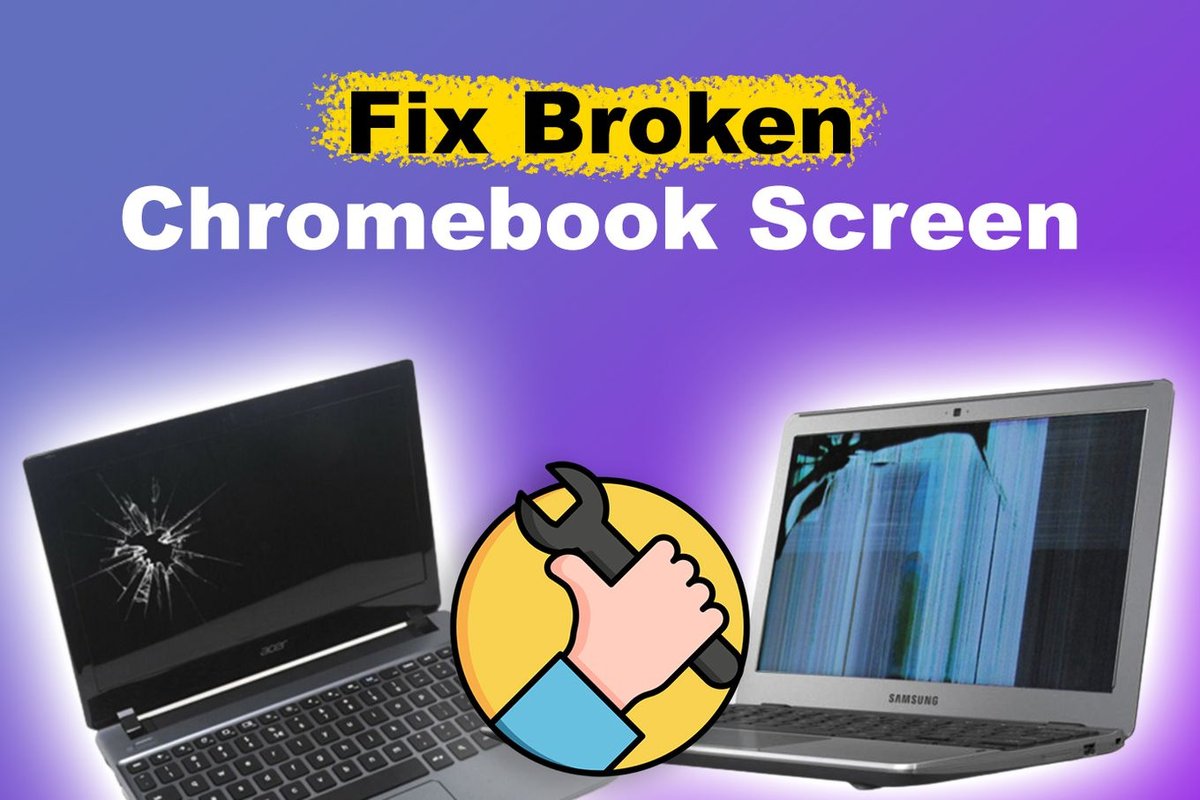
Your Chromebook display, once a portal to productivity and entertainment, suddenly starts acting up. Perhaps it’s a nervous flicker, a jarring tear, or strange digital artifacts dancing across your work. These glitches aren't just annoying; they can grind your workflow to a halt, leaving you frustrated and wondering what went wrong.
But before you resign yourself to a new device or an expensive repair, know this: many common Chromebook screen glitches have surprisingly straightforward solutions. As a seasoned tech journalist, I’m here to walk you through a systematic, easy-to-understand process for Diagnosing Common Chromebook Screen Glitches affecting your display. Consider this your definitive guide to understanding, troubleshooting, and hopefully, fixing your screen issues, bringing clarity back to your Chromebook.
Quick Glance: Your Glitch-Busting Checklist
Facing a glitching Chromebook screen? Here's a rapid-fire checklist of common solutions we'll cover, moving from the simplest to the more intensive:
- Restart your Chromebook: Often, the simplest fix for minor software bugs.
- Reset Chrome Flags: Experimental features can sometimes cause display issues.
- Test with an external monitor: Crucial for determining if it's a hardware or software problem.
- Update Chrome OS: Outdated software is a frequent culprit.
- Adjust display size: Incompatible resolutions can cause visual anomalies.
- Perform a Powerwash (factory reset): A clean slate for persistent software problems (remember to back up!).
- Cool down your device: Overheating leads to performance and display issues.
- Disable browser extensions: Third-party add-ons can interfere with rendering.
- Turn off hardware acceleration: Sometimes helpful for graphics rendering issues.
- Attempt a system recovery: Reinstalls the entire OS (another data-wiping step).
- Contact a technician: When all else fails, it might be a physical screen problem.
Understanding the Glitch: What Your Chromebook is Telling You
Before diving into solutions, it helps to understand what kind of "glitch" you're actually seeing. Different symptoms can hint at different underlying causes.
Flickering Displays
This is perhaps the most common and unnerving symptom. Your screen might rapidly flash on and off, or individual elements might appear to vibrate or shimmer. Sometimes it's a constant, irritating flicker; other times it's intermittent, triggered by certain actions or applications. A persistent, repeated black and white flickering, for instance, often points to a deeper issue than a casual flicker.
Screen Tearing and Visual Artifacts
Screen tearing occurs when your display shows information from multiple frames in a single screen draw, creating a horizontal "tear" effect. Visual artifacts, on the other hand, are unexpected and unwanted patterns, lines, or blocks of color that appear on your screen. These can range from minor distortions to severe corruption of the entire image, making the display nearly unusable.
Sudden Blackouts or Freezes
Imagine working away, and your screen suddenly goes completely black, or freezes on a single image, unresponsive to input. While sometimes a sign of the entire system crashing, if the audio continues or the device remains somewhat responsive (e.g., keyboard backlight stays on), it could be a display-specific issue rather than a full system lockup.
Root Causes: Why Your Chromebook Screen is Glitching
Now that you're familiar with the symptoms, let's explore the common culprits behind these frustrating screen glitches. Pinpointing the "why" can often guide you to the "how to fix."
Software Bugs & Outdated OS
Just like any operating system, Chrome OS can encounter temporary software bugs that affect display drivers or graphics rendering. If your system is running an older version, it might lack crucial bug fixes or optimizations that prevent glitches.
Experimental Chrome Flags
Chrome Flags are experimental features that Google is testing. While they offer intriguing possibilities, they are, by definition, unstable. Activating certain flags, especially those related to graphics rendering or animation like "smooth scrolling," can inadvertently introduce display inconsistencies or glitches.
Overheating Woes
Chromebooks, despite their often fanless designs, generate heat. If your device gets too hot, its internal components—including the graphics chip—can start to malfunction. This often manifests as visual glitches, flickering, or even system slowdowns, as the device tries to protect itself from damage by throttling performance.
Problematic Browser Extensions
We rely on browser extensions to enhance our web experience, but not all extensions are created equal. Poorly coded or outdated extensions can conflict with Chrome OS's rendering engine, causing visual anomalies, especially when interacting with specific web pages or elements.
Hardware Acceleration Hiccups
Hardware acceleration allows your Chromebook's graphics processor (GPU) to handle tasks that would normally bog down the main CPU. This speeds things up, but sometimes, a conflict between the GPU, its drivers, and Chrome OS can lead to display issues. Disabling it forces the CPU to take over, which can sometimes resolve graphical glitches.
The Unfortunate Reality: Physical Screen Damage
Sometimes, the simplest explanation is the correct one. A fall, pressure, or even age can cause physical damage to the screen panel itself or the internal display ribbon cables. While less common than software issues, a visibly cracked screen or consistent, specific patterns of distortion often point to hardware failure.
Your First Line of Defense: Simple Fixes to Try Now
Let's start with the easiest, least invasive troubleshooting steps. These often resolve minor issues without needing to delve into complex settings. If you're looking to Troubleshoot your Chromebook screen issues effectively, these initial steps are paramount.
The Classic Restart: A Digital Reset Button
It might sound too simple, but restarting your Chromebook is surprisingly effective for a wide range of minor issues, including display glitches. A restart clears temporary memory, closes all running processes, and reloads the operating system from a fresh state. This often resolves transient software bugs that might be causing your screen to act up.
How to do it:
- Hold down the Power button until your Chromebook completely shuts down (the screen will go black). This usually takes about 5-10 seconds.
- Wait for at least one minute. This ensures all power drains from the components.
- Press the Power button again to turn your Chromebook back on.
- Observe if the glitch persists once it reboots.
Taming Rogue Chrome Flags
Remember those experimental features? If you've tinkered with chrome://flags in the past, one of those enabled features could be the culprit. Resetting them to their default state is a quick way to rule this out.
How to do it:
- Open the Chrome browser on your Chromebook.
- In the address bar, type
chrome://flagsand press Enter. - At the top right of the Chrome Flags page, you'll see a button that says "Reset all." Click this button.
- You'll be prompted to restart your browser. Click "Restart" or "Relaunch."
- Special Note on Smooth Scrolling: If you specifically remember enabling "smooth scrolling" (which is known to cause issues for some users), you can search for "smooth scrolling" on the
chrome://flagspage and explicitly set it to "Disabled" before relaunching.
The External Monitor Test: Diagnosing Hardware vs. Software
This is arguably the most critical diagnostic step. By connecting your Chromebook to an external monitor or TV, you can quickly determine if the problem lies with your Chromebook's internal screen hardware or its software/graphics output.
How to do it:
- Obtain an HDMI or DisplayPort cable.
- Connect one end to your Chromebook's video output port (usually HDMI or USB-C with display capabilities).
- Connect the other end to an external monitor or TV.
- Ensure the external display is set to the correct input source (e.g., HDMI 1).
- Observe the external monitor:
- If the external monitor displays normally (no glitches): This is a strong indicator that your Chromebook's internal screen is physically damaged or has a faulty connection. In this case, professional repair or screen replacement will likely be necessary.
- If the external monitor also shows the same glitches: This suggests the problem is software-related, a graphics driver issue, or a problem with the Chromebook's internal graphics chip itself, rather than just the screen panel. This means you should continue with the software troubleshooting steps.
Diving Deeper: Software Solutions for Stubborn Glitches
If the initial steps haven't resolved your screen issues, it's time to dig deeper into software-related causes.
Keeping Your Chrome OS Current: The Power of Updates
Outdated operating system software is a common cause of instability and glitches. Chrome OS updates often include critical bug fixes, driver improvements, and performance enhancements that can directly address display problems. Chromebooks typically update automatically, but it's good to manually check.
How to do it:
- Ensure your Chromebook is connected to Wi-Fi or Ethernet.
- Look for an "Update available" notification in the bottom right corner of your screen. If you see it, click on it and select "Restart to Update."
- To check manually:
- Click on the time in the bottom-right corner of your screen.
- Click on the Settings gear icon.
- In the Settings menu, click "About ChromeOS" in the left-hand panel.
- Click "Check for updates." If an update is found, follow the on-screen prompts to download and install it, which will require a restart.
Re-evaluating Your Display Size Settings
Occasionally, an incompatible display resolution or scaling setting can cause glitches or odd visual behavior. If you've recently changed your display size, reverting to default or trying a different setting might help.
How to do it:
- Click on the time in the bottom-right corner of your screen.
- Click on the Settings gear icon.
- In the Settings menu, click "Device" in the left-hand panel, then select "Displays."
- Under the "Display size" section, you'll see a slider. If you've adjusted it previously, try sliding it to the left to reduce the display scale or return it to the recommended setting (often marked by a notch on the slider).
- Test different display sizes to see if the glitch disappears at a particular setting.
Unmasking Problematic Browser Extensions
Browser extensions, while useful, can sometimes interfere with your Chromebook's performance, including how web content is rendered. Disabling them one by one can help you identify a rogue extension.
How to do it:
- Open the Chrome browser.
- Click on the three vertical dots (Menu icon) in the top-right corner.
- Hover over "More tools," then click "Extensions."
- This will open the Extensions page, listing all your installed extensions.
- To test: Toggle off each extension one by one using the blue switch. After disabling each one, observe if the screen glitch (especially when browsing the web) disappears. If it does, you've found your culprit. You can then try updating that extension or removing it permanently.
Disabling Hardware Acceleration: A Performance Trade-off?
Hardware acceleration is designed to make your Chromebook snappier by offloading graphics tasks to dedicated hardware. However, sometimes this process can lead to conflicts and display glitches. Turning it off forces your CPU to handle these tasks, which might resolve the issue, though it could slightly impact performance.
How to do it:
- Open the Chrome browser.
- Click on the three vertical dots (Menu icon) in the top-right corner.
- Click "Settings."
- In the left-hand panel, click "System."
- Find the toggle labeled "Use hardware acceleration when available" and turn it off.
- You'll likely be prompted to relaunch Chrome. Do so, and then check if the screen glitch persists.
The Nuclear Options: When All Else Fails (and You've Backed Up!)
If you've exhausted all other troubleshooting steps and your Chromebook screen is still glitching, these more drastic measures can often fix deep-seated software issues. However, they involve erasing all personal data, so backing up your important files to Google Drive or an external storage device is absolutely critical before proceeding.
The Powerwash (Factory Reset): A Clean Slate
A Powerwash is the Chromebook equivalent of a factory reset. It completely wipes all user data and settings, returning your device to its out-of-the-box state. This can resolve persistent software conflicts, corrupted user profiles, or stubborn bugs that simple restarts and updates couldn't touch.
Before you start: Back up your data!
- Open the Chrome OS Files app.
- Navigate to the "Downloads" folder.
- Press Ctrl + A to select all files, then Ctrl + C to copy them.
- Open Google Drive (or another cloud storage service).
- Create a new folder (e.g., "Chromebook Backup").
- Press Ctrl + V to paste your copied files into the new folder. Repeat for any other important folders.
How to Powerwash:
There are two main ways to initiate a Powerwash:
Method 1: Through Settings (if your screen is usable) - Click on the time in the bottom-right corner of your screen.
- Click on the Settings gear icon.
- Scroll down and click "Advanced" on the left-hand panel.
- Under the "Reset settings" section, locate "Powerwash" and click "Reset."
- Confirm your choice by clicking "Restart" and then "Powerwash" again.
Method 2: From the Login Screen (if your screen is severely glitched) - If you're at the login screen, press and hold Ctrl + Alt + Shift + R.
- Click "Restart."
- Once the Chromebook restarts, you'll see an option for "Powerwash." Select it and click "Continue."
After the Powerwash, your Chromebook will reboot as if it were brand new. You'll need to sign in with your Google Account and restore your files from your backup.
Full System Recovery: Reinstalling Chrome OS from Scratch
If even a Powerwash doesn't resolve the issue, or if your Chromebook is completely unusable (e.g., black screen with no way to access settings), a full system recovery might be necessary. This process completely erases and reinstalls the Chrome OS, which is more comprehensive than a Powerwash and can fix deeper system corruption. You will need another computer and a USB drive (at least 8GB) to create a recovery image.
Important: This step also permanently deletes all files. Ensure your backup is complete.
How to do it:
- Prepare a Recovery Drive:
- On another working computer, install the "Chromebook Recovery Utility" extension from the Chrome Web Store.
- Launch the utility and follow the on-screen instructions to create a recovery image on a USB flash drive or SD card. You'll need to select your specific Chromebook model.
- Initiate Recovery on your Glitched Chromebook:
- Remove all external accessories (USB drives, external monitors, etc.).
- Enter Recovery Mode: While the Chromebook is off, press and hold Esc + Refresh (the circular arrow key), then press the Power button.
- Release the Power button first, then release the Esc and Refresh keys when a message appears on the screen (often saying "Chrome OS is missing or damaged. Please insert a recovery USB stick or SD card.").
- Insert the Recovery Drive:
- Insert the USB drive you prepared into your Chromebook.
- Follow the on-screen instructions. The process will reinstall Chrome OS, which can take some time.
- Once complete, remove the recovery drive, and your Chromebook will restart with a fresh installation of Chrome OS.
When to Call in the Pros: Recognizing Hardware Failure
You've tried everything. You've restarted, updated, reset flags, even wiped your Chromebook clean with a Powerwash or System Recovery. If the screen continues to glitch—especially if the external monitor test confirmed the problem wasn't software-related—then it's time to face the likelihood of a hardware issue.
When to contact a technician:
- The external monitor test showed a perfectly normal display, while your Chromebook's internal screen remained glitched.
- You see physical damage on the screen (cracks, noticeable dead pixels, liquid damage).
- The glitches are constant, static patterns that don't change regardless of what's on the screen (e.g., fixed lines, colored blocks).
- All software troubleshooting steps, including Powerwash and System Recovery, have failed.
At this point, the problem is likely with the display panel itself, the display cable connecting the screen to the motherboard, or even a fault on the motherboard's display circuitry. These issues require specialized tools and expertise to diagnose and repair. Contact your Chromebook's manufacturer, the retailer you bought it from, or a reputable local computer repair shop for a professional assessment and potential screen replacement.
Beyond the Fix: Preventing Future Screen Glitches
While some glitches are unavoidable, many can be prevented with good habits.
Maintain Good Airflow
Overheating is a silent killer for electronics. Use your Chromebook on hard, flat surfaces that allow air to circulate around its vents. Avoid using it extensively on soft surfaces like beds or laps, which can block vents and trap heat.
Regular Software Updates
Make it a habit to check for and install Chrome OS updates. These updates often contain critical bug fixes and performance improvements that can prevent glitches before they start.
Mind Your Extensions
Be selective about the browser extensions you install. Only download them from trusted sources (the Chrome Web Store) and regularly review your installed extensions, disabling or removing any you don't use or that seem suspicious.
FAQs: Quick Answers to Common Chromebook Screen Questions
Can a magnet cause screen glitches?
Modern LCD and LED screens used in Chromebooks are generally not affected by magnets in the same way older CRT monitors were. Therefore, it's highly unlikely that a magnet is causing your screen glitches.
Is screen glitching always a hardware problem?
No, absolutely not. As this guide illustrates, a significant portion of screen glitches are software-related, stemming from bugs, outdated OS, experimental flags, or problematic extensions. The external monitor test is your best friend for differentiating between hardware and software issues.
How long does a Chromebook screen last?
With proper care, a Chromebook screen can easily last the entire lifespan of the device, typically 5-8 years or more. Physical damage from drops, pressure, or liquid spills is the most common reason for premature screen failure, not inherent defects in longevity.
Final Thoughts: Empowering Your Chromebook Experience
Dealing with a glitching screen can be incredibly frustrating, but hopefully, this comprehensive guide has demystified the process of diagnosing and resolving these common Chromebook display issues. By systematically working through the troubleshooting steps, from simple restarts to more intensive software resets, you're well-equipped to restore your Chromebook to its full, clear glory. Remember, knowledge is power—and now you have the power to troubleshoot your way back to a perfectly functioning display.